
How to report a bug
Note
Once a bug is filed, be prepared to answer questions, provide additional details, and test fixes. Engaged reporters get bugs resolved faster. See The Keys to Successful Bug Reporting.
Quick start
Confirm it’s a bug — not a support request, feature request, or an issue caused by unsupported software (PPAs, third-party packages, self-compiled software). See Determine if it’s really a bug.
Search for duplicates — check the release notes and Launchpad.
Collect information — run
ubuntu-bug <package>(for .deb packages) orsnap report-issue <snap>(for snaps).File the report — provide a clear title, expected vs. actual behaviour, and reproduction steps.
Stay engaged — respond to questions from triagers and developers.
Getting support
Not every problem is a bug. If you’re unsure, or need help debugging, use:
Matrix channels — live chat with volunteers
Ubuntu Discourse — community forum
How to report bugs
Ubuntu uses Launchpad to track bugs. The primary tool for filing bug reports is ubuntu-bug (also called apport-bug or apport-collect), which collects system information and opens a report form in your browser.
For .deb packages:
ubuntu-bug buggy-package-name
For snap packages:
snap report-issue buggy-snap-name
Snap bug trackers are also listed on each package’s page at snapcraft.io.
Create a Launchpad account
You need a Launchpad account to file and comment on bugs.
Determine if it’s really a bug
Do not file a bug if you are:
Requesting new software — see New Packages.
Requesting support — see Community support.
Discussing features or policy — use the ubuntu-devel-discuss mailing list.
Using unsupported software — software from PPAs, third-party packages, or self-compiled software is not supported by Ubuntu. Reproduce the issue with only supported software installed before filing a bug. If the problem only occurs with unsupported software, contact its maintainer directly. See package-archive for details on supported repositories.
Check for existing reports
Check the release notes for known issues.
Search Launchpad for duplicate reports.
Note
For translation or spelling bugs, see Translation bugs.
Reporting a crash
When an application crashes, Apport displays a window offering to collect information and file a report.

Note
Install the whoopsie package to ensure crash reports are uploaded. It’s installed by default on Ubuntu Desktop, but Ubuntu Server users must install it manually: sudo apt install whoopsie.
Development release
In the development release, Apport opens a browser window to file the report on Launchpad. The Apport Retracing Service automatically processes the report to provide debugging information.
Stable release
By default, Apport uploads crash reports to the Error Tracker, not Launchpad (see LP: #994921).
To file on Launchpad instead, edit /etc/apport/crashdb.conf and comment out:
if _is_ubuntu_stable_release():
    databases["ubuntu"]["problem_types"] = ["Bug", "Package"]
Then file the crash report:
ubuntu-bug /var/crash/FILENAME.crash
Apport created a crash file but no prompt appeared
File the crash report manually:
ubuntu-bug /var/crash/FILENAME.crash
To confirm it was uploaded to the Error Tracker, get the ID:
sudo cat /var/lib/whoopsie/whoopsie-id
Then visit https://errors.ubuntu.com/user/ID (replacing ID with the value from the command above).
Apport didn’t create a crash file
Check that Apport is enabled in /etc/default/apport:
enabled=1
If Apport is enabled but still not creating crash files:
LibreOffice crashes — neither Apport nor LibreOffice’s built-in reporter may capture these (see LP: #1537566).
System crashes (freezes, lockups, logout) — see Debugging System Crashes.
Application crashes — see Debugging Program Crashes.
Reporting non-crash bugs
Use ubuntu-bug to collect information about the problematic package or process.
From a specific package
Press Alt+F2, type ubuntu-bug <package name>, and press Enter.

If you don’t know which package is at fault, see finding the right package.
From a running process
Open System Monitor, find the process ID, then run:
ubuntu-bug <PID>
When you don’t know the package
First, review potential package candidates. If you still can’t identify the package, run ubuntu-bug without arguments — it will guide you through questions to help assign the bug.
Completing the bug report
After ubuntu-bug collects information, a browser window opens on Launchpad.
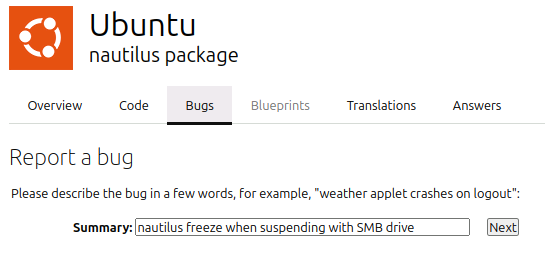
Title — be succinct but descriptive. Example: “On noble, foo fails to launch when started from the application icon”.
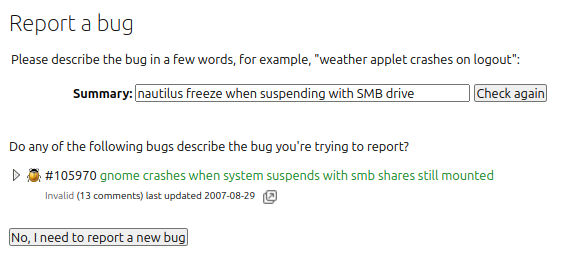
Check for duplicates — Launchpad searches for similar reports. If one matches, click it and confirm. Otherwise, file a new report.
Describe the bug — include:
What you expected to happen
What actually happened
Minimal reproduction steps (starting with “start the program”)
Additional options:
Security vulnerability — check only if the bug could be exploited to compromise security.
Tags — add relevant tags. Leave predefined values as-is.
Attachments — screenshots, logs, or sample files that demonstrate the issue. For kernel bugs,
lspcioutput is collected automatically — no need to attach it separately.
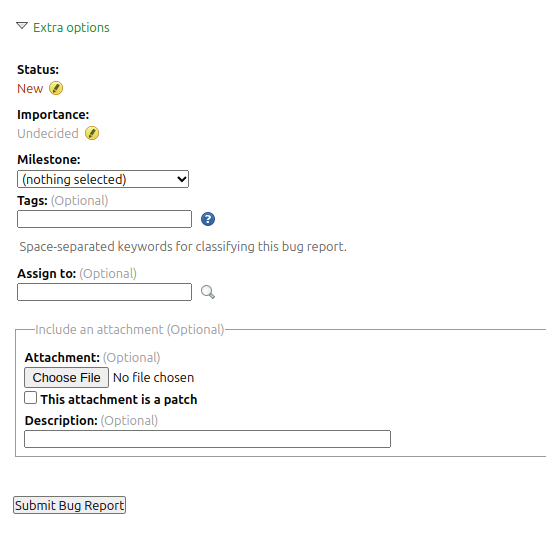
Click Submit bug report.
Tips and tricks
Filing from an offline or headless system
For crashes: copy the .crash file from /var/crash/ to a connected machine and run:
ubuntu-bug FILENAME.crash
For other bugs: save the report on the problem machine:
ubuntu-bug PACKAGENAME --save FILENAME.apport
Copy the file to a connected machine and file it:
ubuntu-bug FILENAME.apport
Do not attach .apport or .crash files directly to a report — use the commands above so the data is processed correctly.
Filing manually at Launchpad
If ubuntu-bug doesn’t work, file directly at bugs.launchpad.net/ubuntu/+filebug. This method is discouraged because the report may lack important system information. Use ubuntu-bug whenever possible.
You can also use a direct URL:
https://bugs.launchpad.net/ubuntu/+source/PACKAGENAME/+filebug?no-redirect
Error: launchpadlib Python module not installed
Install the required package:
sudo apt install python3-launchpadlib
Error: Package libreoffice not installed and no hook available
Install LibreOffice:
sudo apt install libreoffice
Capturing non-crash issues
A screenshot or screencast can help demonstrate the problem.
Translation bugs
File translation bugs against the Ubuntu Translations project for:
Wrong translations or spelling mistakes in non-English languages
Spellchecker or language support errors
Strings not available for translation in Launchpad Translations
Translations not updated in Ubuntu language packs
Duplicate translation templates
If unsure, contact the Translations team.
Bug reporting etiquette
General guidelines
One issue per report. Don’t combine multiple problems (e.g. suspend and hibernate) into a single report.
Search before filing. Check for existing reports, but don’t speculate about duplicates — file a new report if you’re unsure.
Include all requested information upfront. See How to debug an Apport crash. Missing information is the top reason bugs don’t get triaged.
Test the latest version. Try the latest upstream release and the latest development release before filing.
No “me too” comments. If you have the same bug, file a separate report with your own debugging information.
Don’t post log URLs. Paste the full content directly into the report — don’t link to pastebin or similar services.
Don’t compress attachments. Launchpad accepts large attachments.
Don’t reopen fixed bugs. If a problem reoccurs in a newer version, file a new report.
Be objective. Provide facts and technical impact, not opinions or complaints.
Respect triagers and developers. Many are volunteers. If asked for information, provide it without arguing.
Don’t run
apport-collecton other people’s reports unless asked by a triager.
Hardware bug reports
Update BIOS and firmware first. Outdated firmware causes many hardware issues. See BIOS Update.
One report per hardware configuration. Hardware bugs are specific to the combination of components.
Don’t comment on others’ hardware reports. File your own report — even with similar hardware, the root cause may differ.
Getting advice
Still have questions? Ask in Matrix.