
Spring AI and Observability
The tutorial demonstrates how metrics like token usage count, and statistics for model interaction and vector database operations could be fetched from Spring AI. It also demonstrates how easy it is to have these metrics viewed in prometheus.
Spring AI metrics for the Retrieval Augmented Generation sample
In the Implementing Retrieval Augmented Generation with Spring AI tutorial, we implemented Retrieval Augmented Generation using the ollama/nomic-embed-text embedding model and storing the embeddings in an opensearch vector database. This tutorial extends the RAG example by adding Spring AI observability metrics.
The Spring Boot Actuator is at the center of Spring AI observability. The Actuator presents production-ready features to monitor and manage Spring Boot applications after pushing them to production, through endpoints. This tutorial uses the /metrics and /prometheus endpoints to fetch Spring AI metrics and view them in prometheus.
Important
Implementing the Implementing Retrieval Augmented Generation with Spring AI tutorial is a strict pre-requisite to implement and appreciate this tutorial.
1. Reporting Spring AI metrics on the chat-client interface
This tutorial assumes that the user’s environment has all the pre-requisites listed in Implementing Retrieval Augmented Generation with Spring AI.
1.1 Clone the Spring AI Retrieval Augmented Generation sample
user@host:~$ git clone https://github.com/pushkarnk/spring-ai-rag-demo.git1.2 Add the Spring Boot Actuator dependency
Add the following dependency to build.gradle to the dependencies task:
implementation 'org.springframework.boot:spring-boot-starter-actuator'
1.3 Expose the ‘health’ and ‘metrics’ endpoints
Add the following property at the end of src/main/resource/application.properties:
management.endpoints.web.exposure.include=health,metrics
1.4 Update the chat-client web front-end
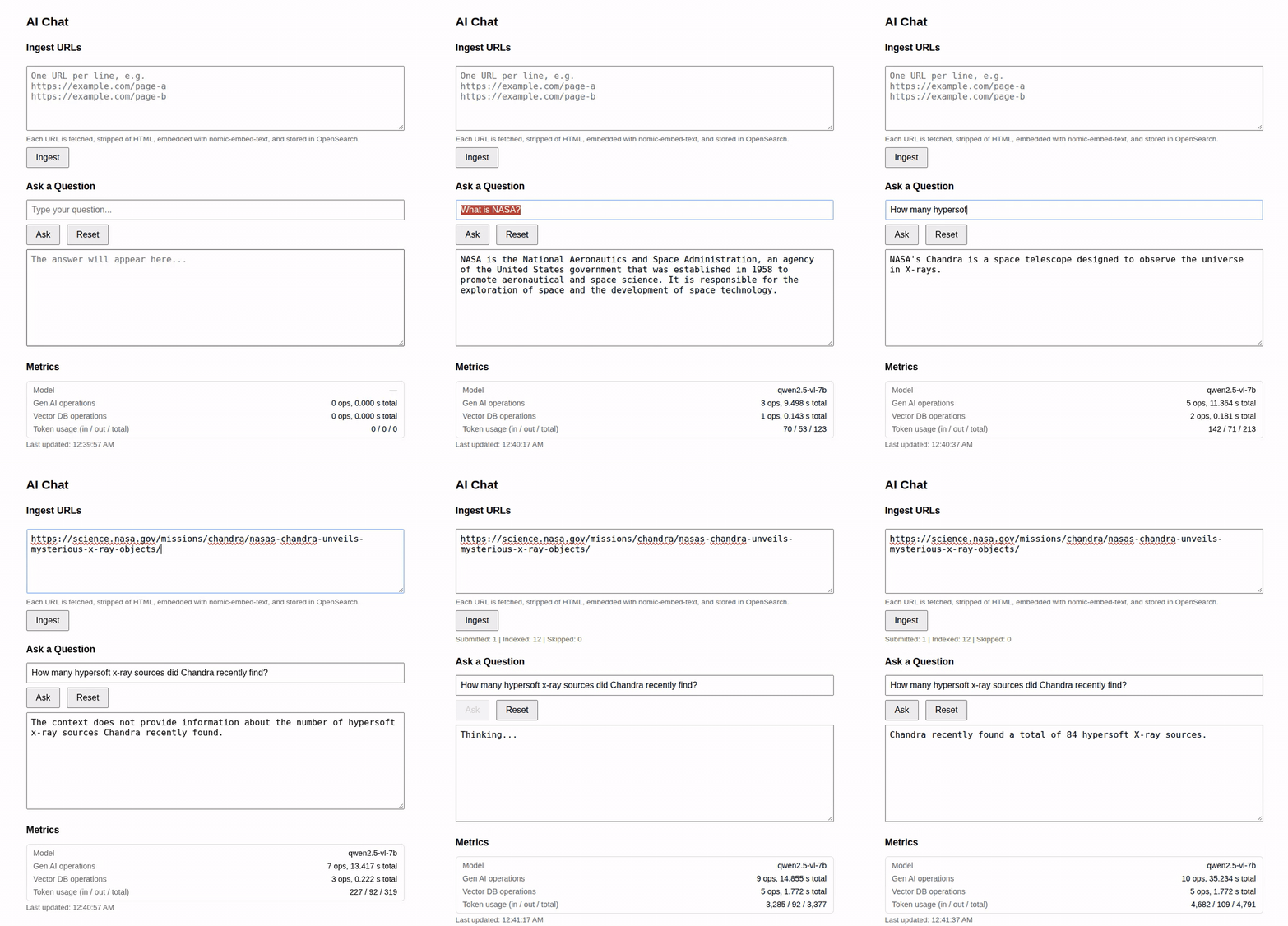
We want to have the following information reported on the web front-end of the chat client:
Name of the model used
Model interaction - number of operations and total time (in seconds) spent on them
Vector database operations - number of operations and total time (in seconds) spent on them
Token usage (in / out / total)
Note
The Spring AI metrics fetched from the Actuator endpoints are relevant to the current instance of the Spring AI application. They are reset on application restart.
Here is an updated src/main/resources/static/index.html. Copy it into your local project.
<!DOCTYPE html>
<html lang="en">
<head>
<meta charset="UTF-8">
<meta name="viewport" content="width=device-width, initial-scale=1.0">
<title>AI Chat</title>
<style>
body { font-family: sans-serif; max-width: 700px; margin: 40px auto; padding: 0 16px; }
h1 { font-size: 1.4rem; }
h2 { font-size: 1.1rem; margin-top: 24px; }
input, textarea { width: 100%; box-sizing: border-box; padding: 8px; font-size: 1rem; }
textarea { resize: vertical; }
textarea#answer { height: 180px; margin-top: 8px; }
textarea#urls { height: 120px; margin-top: 8px; }
.buttons { margin-top: 8px; }
button { padding: 8px 16px; font-size: 1rem; margin-right: 8px; cursor: pointer; }
button:disabled { cursor: default; opacity: 0.6; }
.hint { color: #666; font-size: 0.85rem; margin-top: 4px; }
.result { font-size: 0.85rem; color: #444; margin-top: 8px; white-space: pre-wrap; }
.ok { color: #1a7d1a; }
.err { color: #b00020; }
.metrics { margin-top: 8px; border: 1px solid #ddd; border-radius: 6px; padding: 4px 12px; font-size: 0.9rem; }
.metric-row { display: flex; justify-content: space-between; gap: 16px; padding: 4px 0; }
.metric-name { color: #666; }
.metric-value { font-variant-numeric: tabular-nums; }
</style>
</head>
<body>
<h1>AI Chat</h1>
<h2>Ingest URLs</h2>
<textarea id="urls" placeholder="One URL per line, e.g. https://example.com/page-a https://example.com/page-b"></textarea>
<div class="hint">Each URL is fetched, stripped of HTML, embedded with nomic-embed-text, and stored in OpenSearch.</div>
<div class="buttons">
<button id="ingestBtn">Ingest</button>
</div>
<div id="ingestResult" class="result"></div>
<h2>Ask a Question</h2>
<input id="question" type="text" placeholder="Type your question..." />
<div class="buttons">
<button id="askBtn">Ask</button>
<button id="resetBtn">Reset</button>
</div>
<textarea id="answer" readonly placeholder="The answer will appear here..."></textarea>
<h2>Metrics</h2>
<div class="metrics">
<div class="metric-row"><span class="metric-name">Model</span><span class="metric-value" id="mModel">—</span></div>
<div class="metric-row"><span class="metric-name">Gen AI operations</span><span class="metric-value" id="mGenAi">—</span></div>
<div class="metric-row"><span class="metric-name">Vector DB operations</span><span class="metric-value" id="mVector">—</span></div>
<div class="metric-row"><span class="metric-name">Token usage (in / out / total)</span><span class="metric-value" id="mTokens">—</span></div>
</div>
<div id="metricsStatus" class="hint"></div>
<script>
const questionEl = document.getElementById('question');
const answerEl = document.getElementById('answer');
const askBtn = document.getElementById('askBtn');
const resetBtn = document.getElementById('resetBtn');
const urlsEl = document.getElementById('urls');
const ingestBtn = document.getElementById('ingestBtn');
const ingestResultEl = document.getElementById('ingestResult');
function parseUrls() {
return urlsEl.value
.split('\n')
.map(s => s.trim())
.filter(s => s.length > 0);
}
async function ingest() {
const urls = parseUrls();
if (urls.length === 0) {
ingestResultEl.textContent = 'Please enter at least one URL.';
ingestResultEl.className = 'result err';
return;
}
ingestBtn.disabled = true;
ingestResultEl.textContent = 'Ingesting ' + urls.length + ' URL(s)...';
ingestResultEl.className = 'result';
try {
const res = await fetch('/ingest', {
method: 'POST',
headers: { 'Content-Type': 'application/json' },
body: JSON.stringify({ urls })
});
if (!res.ok) {
throw new Error('Request failed: ' + res.status);
}
const data = await res.json();
ingestResultEl.textContent =
'Submitted: ' + data.submitted +
' | Indexed: ' + data.indexed +
' | Skipped: ' + data.skipped;
ingestResultEl.className = 'result ok';
} catch (err) {
ingestResultEl.textContent = 'Error: ' + err.message;
ingestResultEl.className = 'result err';
} finally {
ingestBtn.disabled = false;
}
}
async function ask() {
const question = questionEl.value.trim();
if (!question) {
answerEl.value = 'Please enter a question.';
return;
}
askBtn.disabled = true;
answerEl.value = 'Thinking...';
try {
const res = await fetch('/ask', {
method: 'POST',
headers: { 'Content-Type': 'application/json' },
body: JSON.stringify({ question })
});
if (!res.ok) {
throw new Error('Request failed: ' + res.status);
}
const data = await res.json();
answerEl.value = data.answer;
} catch (err) {
answerEl.value = 'Error: ' + err.message;
} finally {
askBtn.disabled = false;
}
}
function reset() {
questionEl.value = '';
answerEl.value = '';
questionEl.focus();
}
ingestBtn.addEventListener('click', ingest);
askBtn.addEventListener('click', ask);
resetBtn.addEventListener('click', reset);
questionEl.addEventListener('keydown', (e) => {
if (e.key === 'Enter') ask();
});
const mModelEl = document.getElementById('mModel');
const mGenAiEl = document.getElementById('mGenAi');
const mVectorEl = document.getElementById('mVector');
const mTokensEl = document.getElementById('mTokens');
const metricsStatusEl = document.getElementById('metricsStatus');
async function fetchMetric(name, tags) {
const qs = (tags || []).map(t => 'tag=' + encodeURIComponent(t)).join('&');
const res = await fetch('/actuator/metrics/' + name + (qs ? '?' + qs : ''));
if (res.status === 404) return null; // no data yet for this tag combination
if (!res.ok) throw new Error('Request failed: ' + res.status);
return res.json();
}
function stat(data, statistic) {
if (!data) return 0;
const m = (data.measurements || []).find(m => m.statistic === statistic);
return m ? m.value : 0;
}
function tagValues(data, tagName) {
if (!data) return [];
const t = (data.availableTags || []).find(t => t.tag === tagName);
return t ? t.values : [];
}
function fmtOps(data) {
const count = stat(data, 'COUNT');
const total = stat(data, 'TOTAL_TIME');
return count + ' ops, ' + total.toFixed(3) + ' s total';
}
function fmtTokens(n) {
return Math.round(n).toLocaleString();
}
function detectModel(chatTokenMetric, tokenMetric) {
// Prefer the model reported on chat responses...
let models = tagValues(chatTokenMetric, 'gen_ai.response.model');
if (models.length === 0) {
// ...otherwise the requested chat model (ignoring the "none" placeholder)...
models = tagValues(chatTokenMetric, 'gen_ai.request.model')
.filter(v => v !== 'none');
}
if (models.length === 0) {
// ...and finally fall back to any requested model seen so far.
models = tagValues(tokenMetric, 'gen_ai.request.model')
.filter(v => v !== 'none');
}
return models.length > 0 ? models.join(', ') : '—';
}
async function updateMetrics() {
try {
const [genAi, vectorDb, tokIn, tokOut, tokTotal, chatTok] = await Promise.all([
fetchMetric('gen_ai.client.operation'),
fetchMetric('db.vector.client.operation'),
fetchMetric('gen_ai.client.token.usage', ['gen_ai.token.type:input']),
fetchMetric('gen_ai.client.token.usage', ['gen_ai.token.type:output']),
fetchMetric('gen_ai.client.token.usage', ['gen_ai.token.type:total']),
fetchMetric('gen_ai.client.token.usage', ['gen_ai.operation.name:chat'])
]);
mModelEl.textContent = detectModel(chatTok, tokTotal);
mGenAiEl.textContent = fmtOps(genAi);
mVectorEl.textContent = fmtOps(vectorDb);
mTokensEl.textContent =
fmtTokens(stat(tokIn, 'COUNT')) + ' / ' +
fmtTokens(stat(tokOut, 'COUNT')) + ' / ' +
fmtTokens(stat(tokTotal, 'COUNT'));
metricsStatusEl.textContent = 'Last updated: ' + new Date().toLocaleTimeString();
} catch (err) {
metricsStatusEl.textContent = 'Metrics unavailable: ' + err.message;
}
}
updateMetrics();
setInterval(updateMetrics, 5000);
</script>
</body>
</html>
1.5 Launch the application and do a sample interaction
Launch the application using this command:
user@host:~$ SPRING_PROFILES_ACTIVE=tls ./gradlew bootRunThe screen capture below shows a sample interaction with the chat-client. Notice the metrics fetched and reported at the bottom of the window. These metrics are fetched from the Actuator’s /metrics endpoint by Javascript code in the src/main/resources/static/index.html.
2. Viewing Spring AI metrics in Prometheus
In this section, we will fetch the same metrics as in the previous section, in prometheus.
Note
The goal of this section is only to help appreciate the ease of fetching Spring AI metrics into prometheus, in a development environment.
2.1 Add the Micrometer Register Prometheus dependency
Add the following dependency to build.gradle to the dependencies task:
implementation 'io.micrometer:micrometer-registry-prometheus'
2.2 Expose the Actuator’s prometheus endpoint
Simply append prometheus to the new property defined in src/main/resource/application.properties:
management.endpoints.web.exposure.include=health,metrics,prometheus
2.3 Install, configure and launch prometheus
Install the APT package for prometheus:
user@host:~$ sudo apt install prometheusUpdate the prometheus configuration in /etc/prometheus/prometheus.yml. Add the following job at the end of the scrape_configs section:
  - job_name: 'springai'
    metrics_path: '/actuator/prometheus'
    static_configs:
      - targets: ['localhost:8080']
Important
Ensure the indentation of the above job description matches the existing jobs.
Finally, launch prometheus:
sudo prometheus
The Prometheus web UI should now be accessible at http://localhost:9090.
2.4 Launch the application and do a sample interaction
Relaunch the application using this command:
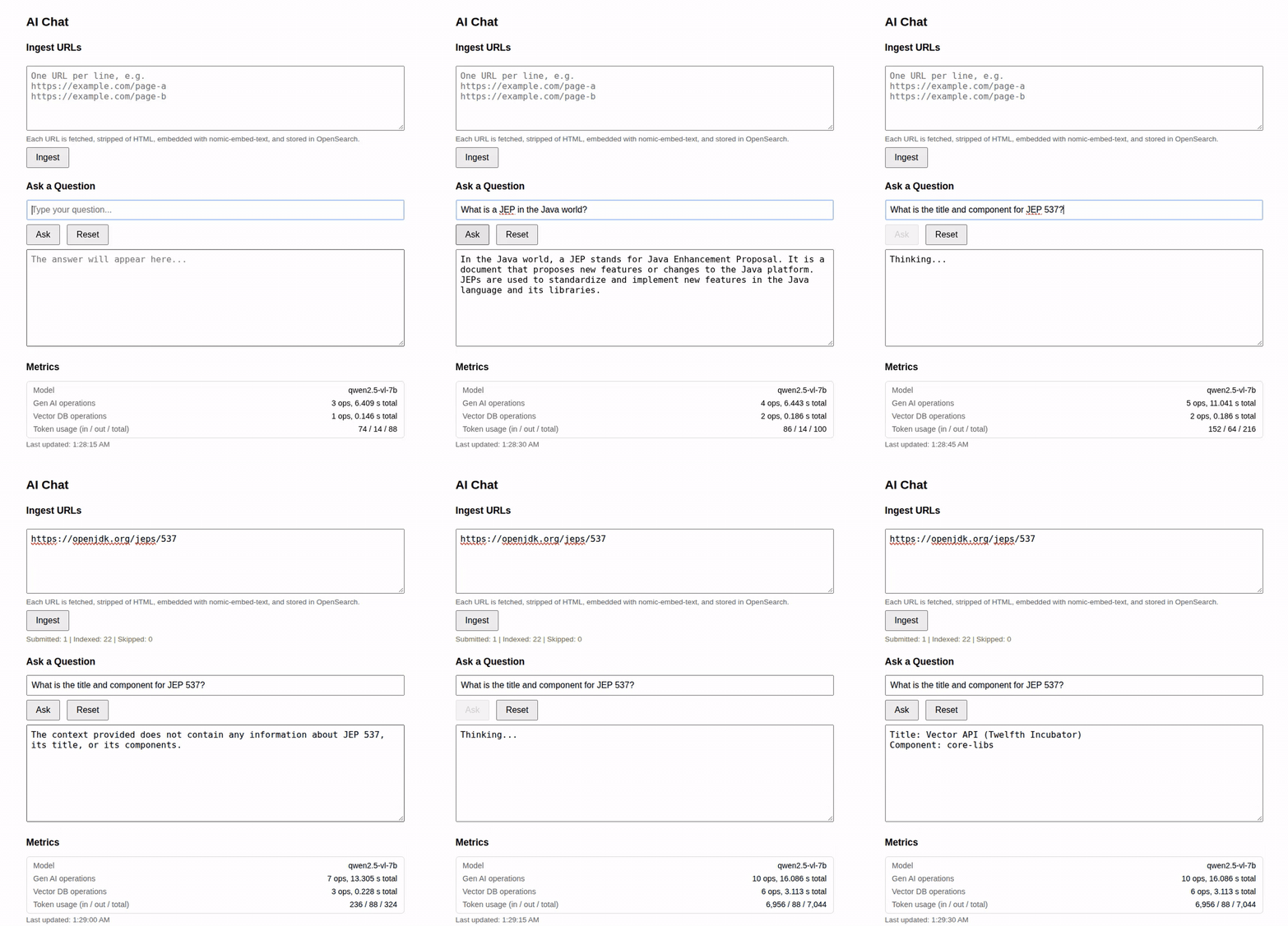
user@host:~$ SPRING_PROFILES_ACTIVE=tls ./gradlew bootRunThis is a screen-capture of another sample interaction:
2.5 View the metrics in Prometheus
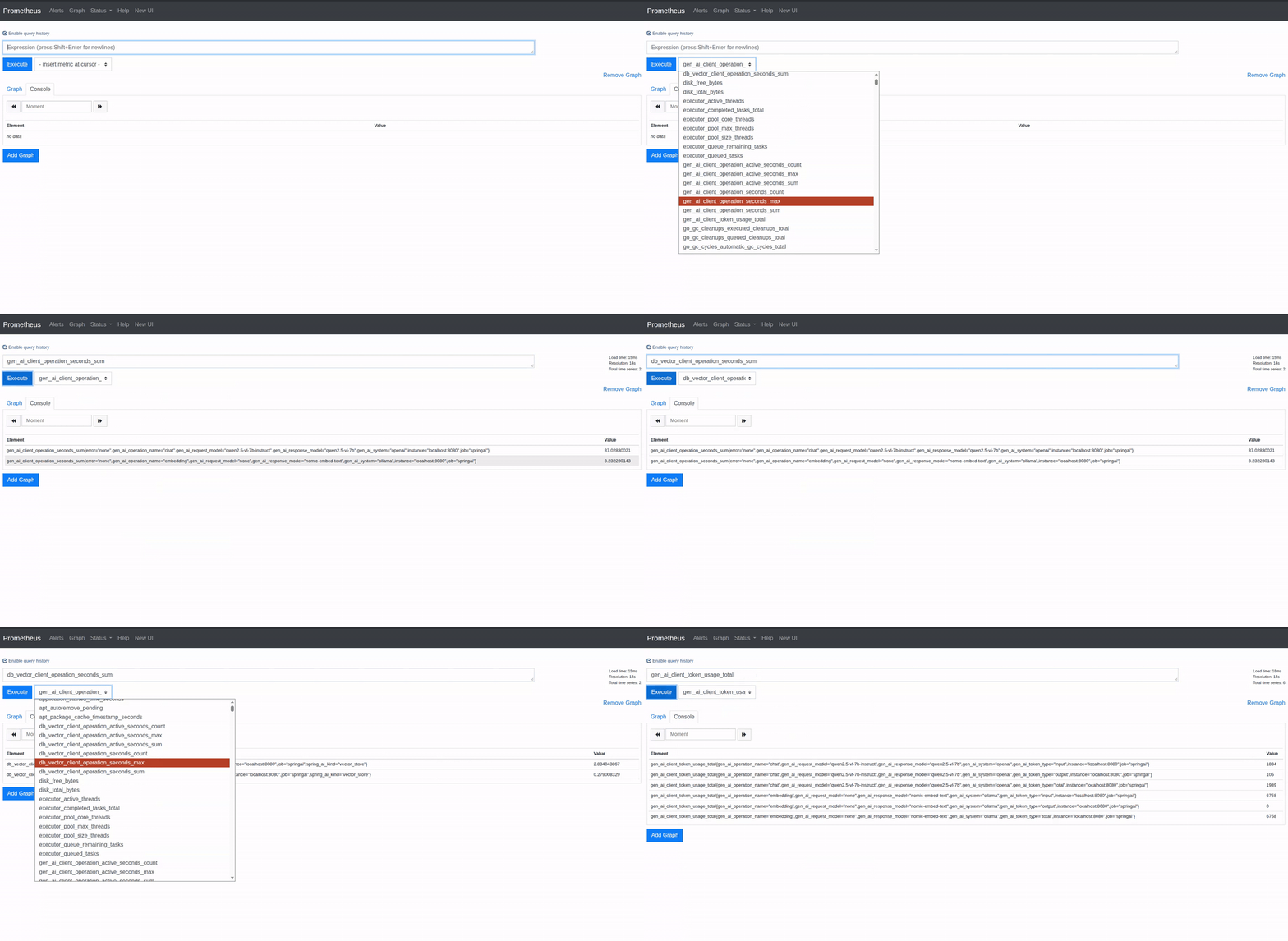
Open http://localhost:9090 in a browser window. Select the metric from the drop-down list and click Execute. This should display the value of the metric in the Console tab.
Here is the screen-capture of a sample interaction with prometheus:
Note
The Spring AI application should be running while accessing prometheus. An application restart resets the metrics.